

Auftragszeiten
Verwaltung → Zeiten → Auftragszeiten
While the Personalzeit says “Ms Müller was on site from 8 am to 5 pm”, the Auftragszeit says “3.5 hours of that went to Auftrag 4711”.
This is the data basis for project costing and customer invoicing. In business terms, Auftragszeiten sit inside the attendance — they do not replace it.
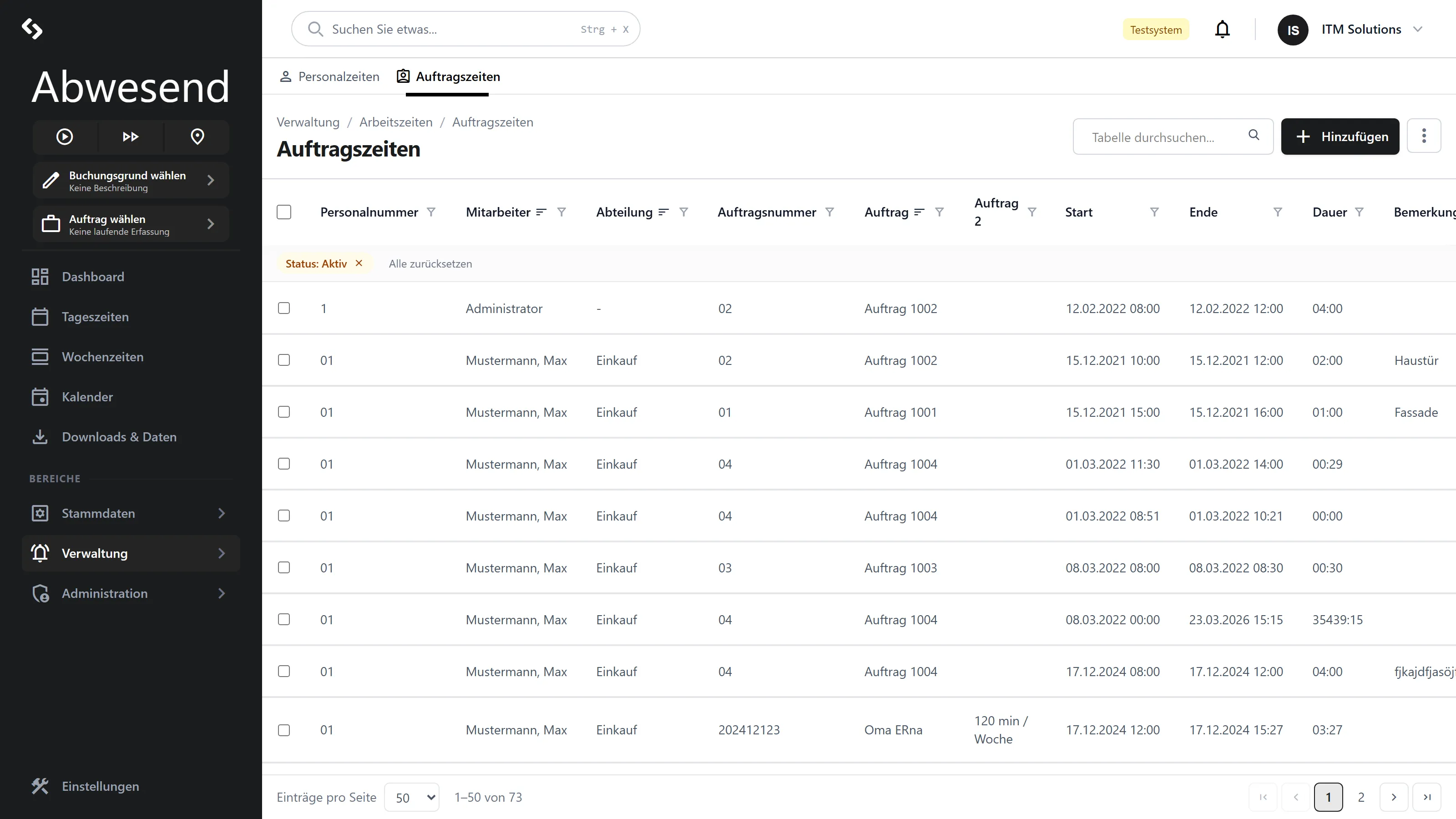
The columns
Section titled “The columns”| Column | Meaning |
|---|---|
Personalnummer | The employee’s personnel number. |
Mitarbeiter | Nachname, Vorname (surname, first name). |
Abteilung | The department. |
Auftragsnummer | The number from the order master data. |
Auftrag | The description. Is truncated after two lines. |
Auftrag 2 | The second description line. |
Start | Start of the order booking. |
Ende | End. If it says offen, the booking has not been closed. |
Dauer | Duration as HH:mm. When grouped, also the group total. |
Bemerkung | Free text. |
Exportiert | Date of the export, otherwise -. |
Searching and filtering
Section titled “Searching and filtering”The search is broader here than in the Personalzeiten — it searches Nachname, Vorname, Auftragsnummer, Auftragsbezeichnung and Bemerkung.
| Pre-filter | Options | Default |
|---|---|---|
Zeitraum | The last 12 months | current month |
Status | Aktiv, Archiviert, Ausgeblendet | Aktiv |
There is no Buchung pre-filter here. You can find open Auftragszeiten with a column
filter on Ende using the ist leer operator.
Recording an Auftragszeit
Section titled “Recording an Auftragszeit”-
Hinzufügen — or right-click a row → Bearbeiten.
-
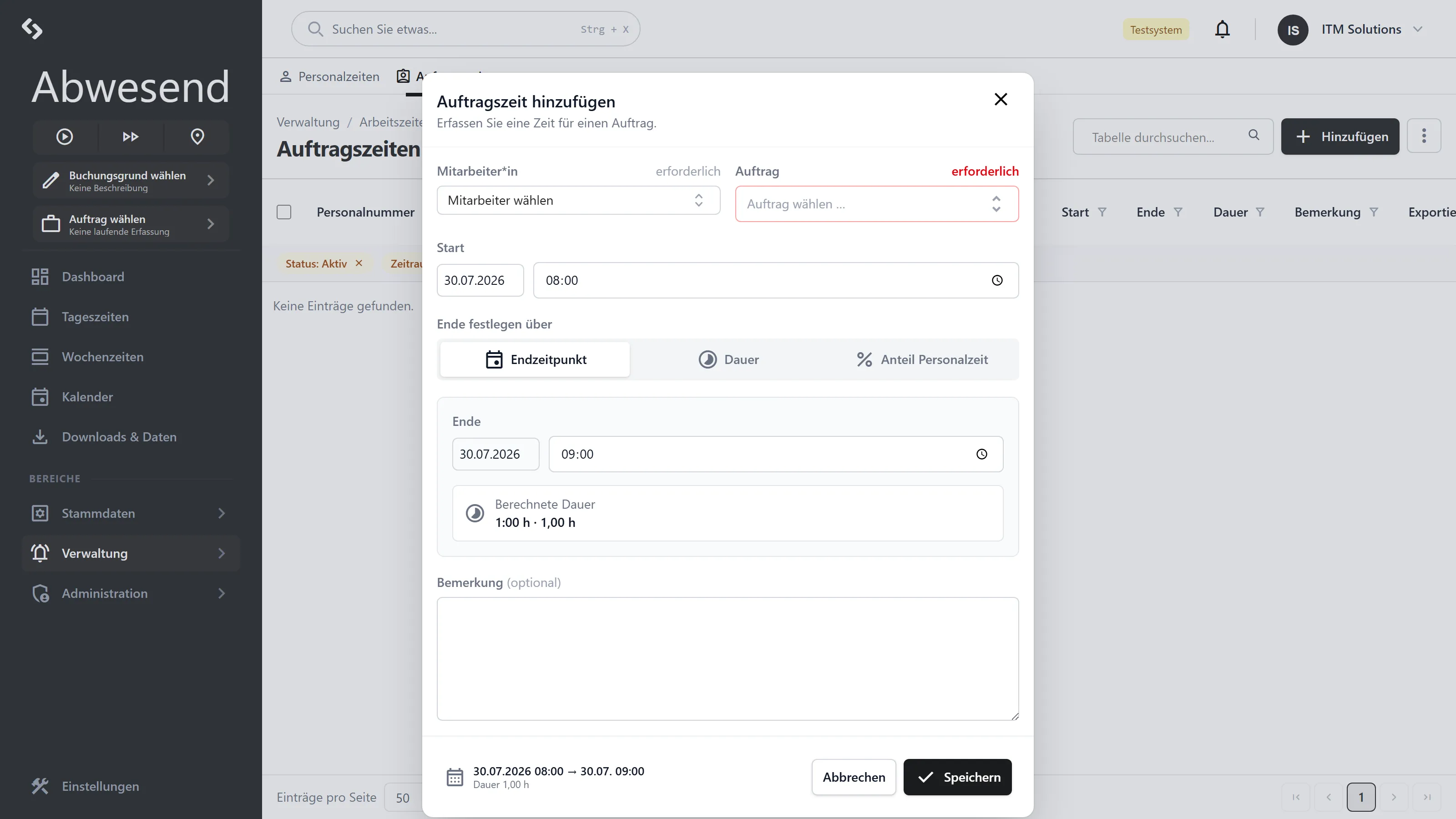
Select Mitarbeiter*in and Auftrag.
The order is chosen through a picker with a search box. Mark frequently used orders as a favourite with the star — favourites then appear at the top from then on. The clock symbol shows the most recently used orders.
-
Set Start (date + time).
-
Set the end — there are three ways to do this.
-
Speichern.
Setting the end time
Section titled “Setting the end time”The Ende festlegen über toggle offers three modes. They lead to the same result — use whichever fits what you actually know. When you switch, the current value is carried over, so you lose nothing.
| Mode | When it makes sense | Display |
|---|---|---|
| Endzeitpunkt | You know when the work ended. | Berechnete Dauer, e.g. 3:30 h · 3,50 h |
| Dauer | You know how long the work took. | Berechnetes Ende |
| Anteil Personalzeit | All you know is “about half the day”. | Dauer · Ende and verbleibend |
In Dauer mode you enter Std and Min separately — Min is limited to 0–59.
In Anteil Personalzeit mode, the basis is the gewertete Personalzeit for that day. You set a percentage (either in the field or with the slider, in steps of 5) and see immediately how much of the day is still verbleibend (remaining) — negative and red if you overbook.
The dialog checks these directly:
| Message | Meaning |
|---|---|
| „Das Ende liegt vor dem Start.” | Correct the end time. |
| „Start und Ende sind identisch — die Dauer beträgt 0.” | The duration would be zero. |
| „Die Dauer muss größer als 0 sein.” | In Dauer mode. |
| „Bitte einen Anteil größer als 0 % wählen.” | In Anteil mode. |
| „Der Monat ist bereits abgeschlossen.” | See Monatsabschluss. |
Speichern stays locked as long as the duration is not greater than 0.
Reports for an order
Section titled “Reports for an order”The context menu of a row offers two additional entries:
| Entry | Result |
|---|---|
| Auftragsübersicht (Monat) | PDF for the order in that row, for the month of that row’s start date — not for the filtered period. |
| Auftragsübersicht (gesamt) | PDF covering the entire duration of the order. |
The PDF is generated and downloaded; a message confirms the file name. If there is nothing for the selection, „Für die Auswahl wurden keine Daten gefunden.” appears.
Deleting and exporting
Section titled “Deleting and exporting”The same rules apply as for the Personalzeiten:
- Löschen asks for confirmation first; once confirmed, the deletion is final.
- Not yet exported ⇒ deleted for good. Already exported ⇒ only set to
Ausgeblendet. - Every change resets
Exportiert; the row will be included again in the next export. - Delete several rows at once via the checkboxes — see Editing rows.
Screenshots are taken from a test tenant and show sample data. Your interface may differ depending on role, licence and configuration.